

May 1, 2025
How to Duplicate a Page in WordPress
Sometimes, you may want to duplicate a page in WordPress. It can be quite helpful for saving time by creating new articles using an already-implemented design or testing different layouts for your page/post without affecting the original. One can duplicate a WordPress page without any third-party tools, such as Duplicate Page plugins or by copying the whole page through the editor. Advanced users can use custom code or templates for precise control.
This tutorial covers all the possible ways to duplicate a WordPress page, from manual copying to plugins to code-based solutions. It makes it seamless for both beginners and advanced users.
Why Duplicate a Page in WordPress?
Before diving into the methods, here are some common reasons to duplicate a page:
- Creating similar pages (e.g., product pages, landing pages, blog templates)
- Testing changes without affecting the live version
- Redesigning a page while keeping the original intact
- WordPress Migration content between staging and live sites
- Backing up important pages before major updates
How to Duplicate a WordPress Page?
Now that we know why one would want to duplicate a page. Let’s get into the five different ways that you can duplicate a page on your latest WordPress project. Let's start with the first method:
Method 1: Using the Duplicate Page Plugin
With respect to duplicating pages in WordPress, there are various WordPress Plugins that can be used. Remember what functionalities you want, alongside the ratings and reviews of a plugin, before installing it on your WordPress site. Keeping this in mind, for this tutorial, we will use the ‘free version’ of the Duplicate Page plugin. Now, to get started with WordPress page duplication, let us follow these steps:
First of all, install a plugin that is useful for duplicating a WordPress page. For this, look for the left menu and select Plugins, then click Add New:

On your screen’s upper right corner, search box (prior to searching duplicate page. Ensure your Duplicate Page Plugin is visible:

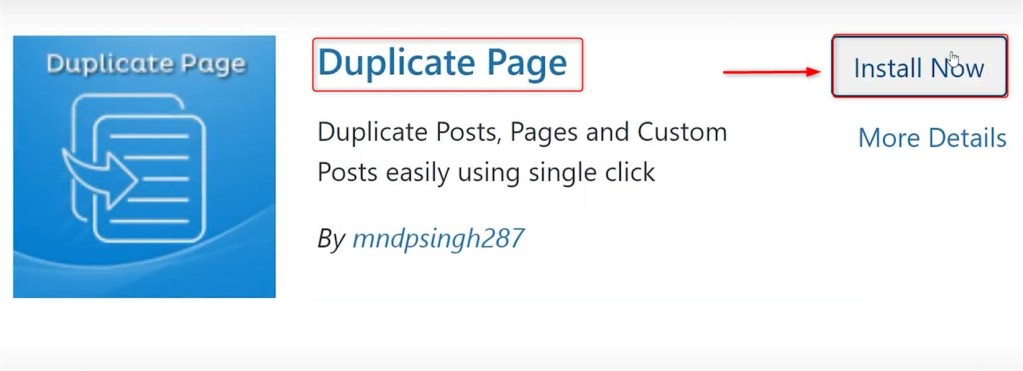
Select and click Install Now after locating the Duplicate Page:
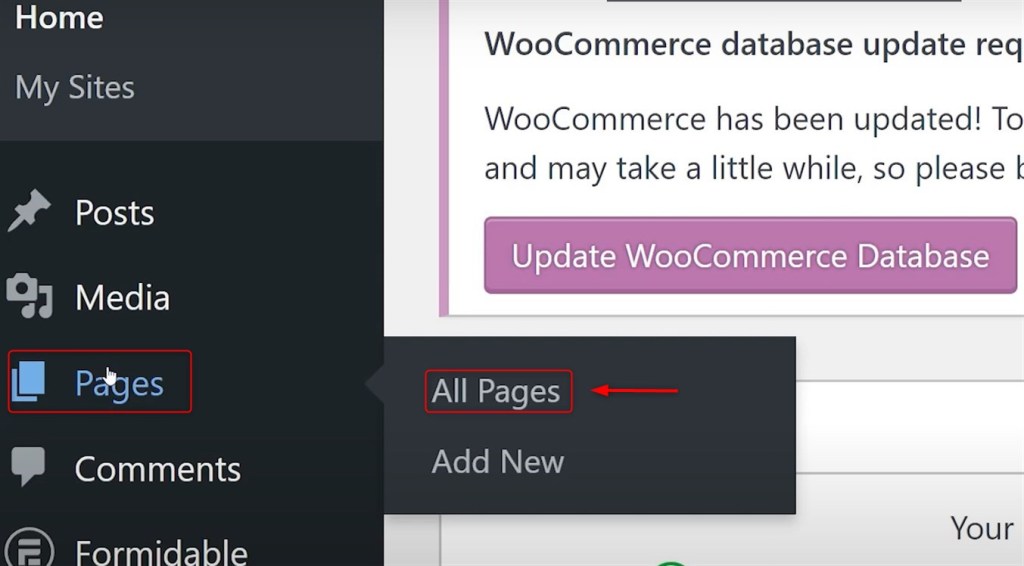
After successful installation and activation of the plugin, go to your website and click on Pages. Finally, click on All Pages from the left sidebar:
Now, you will notice that when you hover over the name of a page, an additional menu item has been added titled Duplicate This:

Once you are ready to duplicate your page, simply click the Duplicate This link under the page listing that you would like to duplicate. The page has been duplicated with the same name as below:

That is all from the easiest method.
Method 2: Manually Copying & Pasting Content
Copy and pasting content also allows you to duplicate the contents of a page in WordPress. You can manually duplicate a page. Here’s how to do it.
First, navigate to All Pages under the Pages section:

After that, pick Edit under the page that you would like to duplicate:

To duplicate a page in WordPress manually, go to your page and copy the content. After you have entered the page editor, do the following steps. Next, highlight all the content within the main content area. Using your mouse, move over to the highlighted content and right-click. Then, select Copy from your system menu:

After that, create the new post by hitting the Add New button. Finally, paste the content into a newly created page:
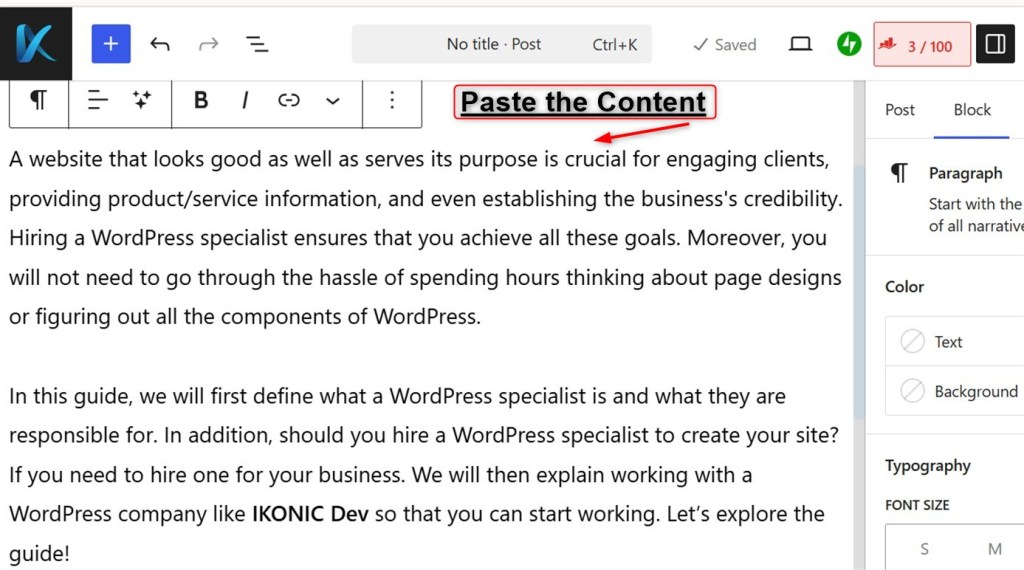
This will bring the content from the former page into this new page.
Method 3: Using the WordPress Export/Import Tool
This method is useful if you want to duplicate a page on another WordPress site. Let’s Hire a WordPress Developer to duplicate the page content:
First of all, Go to Tools > Export and Select "Pages":
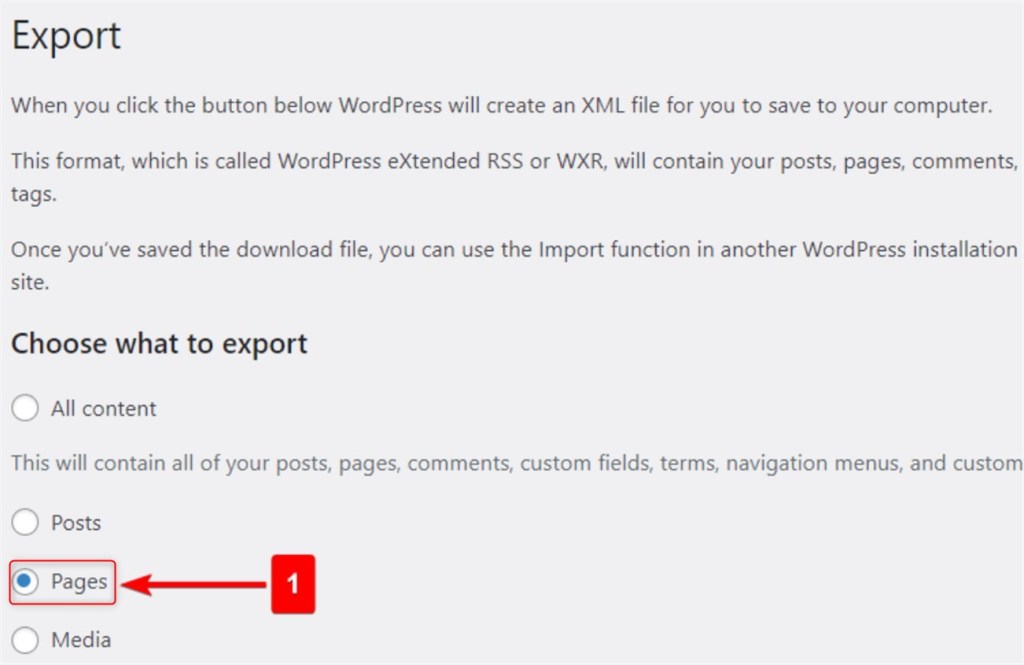
Check the specific page you want to duplicate. After that, click "Download Export File" (XML file).
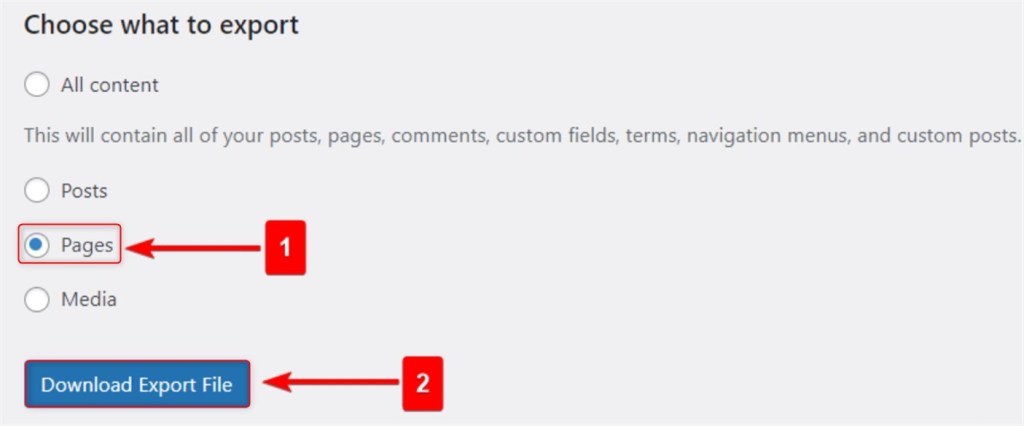
Then, Go to Tools > Import. After that, install the WordPress Importer if not already installed.

After that, upload the exported XML file:
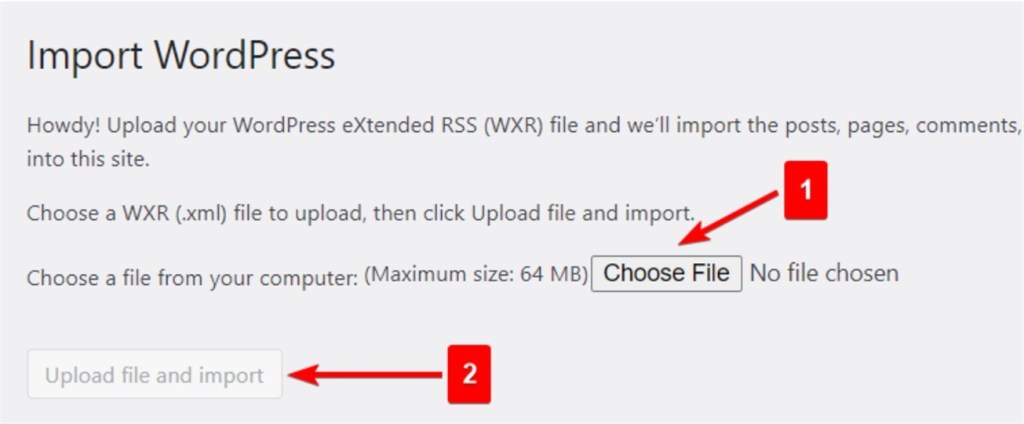
Assign the content to an existing user. Click "Submit" to import.
That is all from Method 3.
Method 4: Using WP-CLI (For Advanced Users)
If you have SSH access to your server, you can use WP-CLI to duplicate a page.
First, navigate to Pages > All Pages. After that, Hover over the page and check the URL for post=XX (XX is the ID):

After that, execute the below command by mentioning the page id:
wp post duplicate <original_page_id> --post_type=page --post_status=draftThis creates a draft copy of the page.
Limitations:
- Do not copy custom fields, featured images, or SEO settings.
- Time-consuming for complex pages.
- After that, you can edit the new duplicate page as needed.
Method 5: Using a Code Snippet (For Developers)
If you prefer a plugin-free method, you can add a function to duplicate pages programmatically.
First, navigate to Appearance > Theme Editor. After that, pick the "Theme Functions (functions.php)".
Finally, insert the below code at the bottom:
| function wpb_duplicate_page() { if (isset($_GET['post']) && current_user_can('edit_posts')) { $original_id = $_GET['post']; $original_page = get_post($original_id); if ($original_page) { $new_page = array( 'post_title' => $original_page->post_title . ' (Copy)', 'post_content' => $original_page->post_content, 'post_status' => 'draft', 'post_type' => $original_page->post_type, ); $new_page_id = wp_insert_post($new_page); // Copy metadata (custom fields) $meta_data = get_post_meta($original_id); foreach ($meta_data as $key => $values) { foreach ($values as $value) { add_post_meta($new_page_id, $key, $value); } } // Redirect to the new page wp_redirect(admin_url('post.php?action=edit&post=' . $new_page_id)); exit; } } } add_action('admin_action_wpb_duplicate_page', 'wpb_duplicate_page'); // Add duplicate link to admin function wpb_duplicate_page_link($actions, $post) { if (current_user_can('edit_posts') && $post->post_type == 'page') { $actions['duplicate'] = '<a href="' . wp_nonce_url('admin.php?action=wpb_duplicate_page&post=' . $post->ID, basename(__FILE__), 'duplicate_nonce') . '">Duplicate</a>'; } return $actions; } add_filter('page_row_actions', 'wpb_duplicate_page_link', 10, 2); |
After that, navigate to Pages > All Pages:
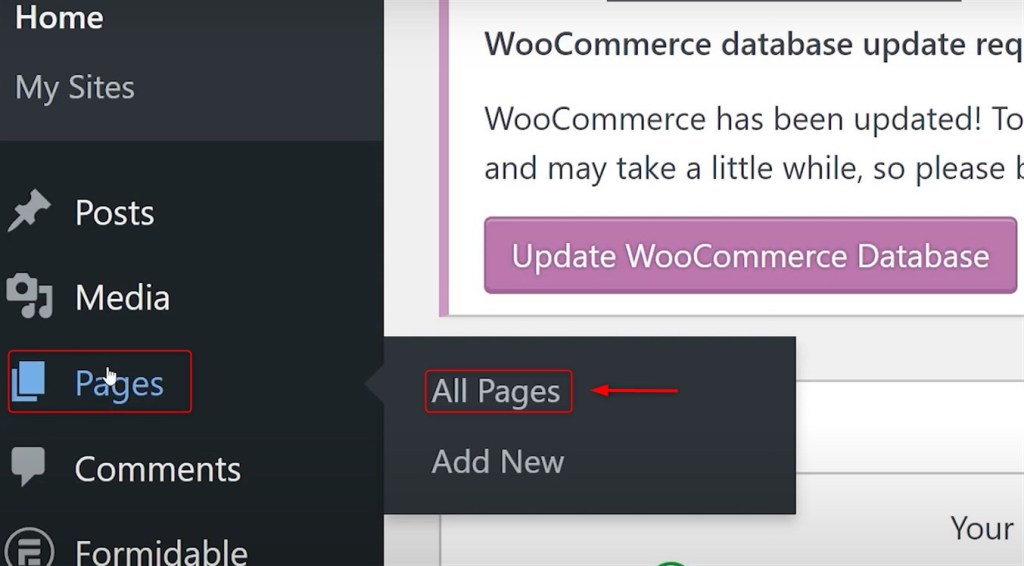
Hover over a page and click "Duplicate This" as below:

A draft copy will be created with all content and custom fields.
That is all from the duplicate page in WordPress.
Conclusion
The easiest method for most users is using a plugin (like Duplicate Page or Duplicate Post) to duplicate a page in WordPress. If you're comfortable with code, the functions.php snippet is a lightweight alternative. For moving pages between sites, export/import works well.
FAQs
Q1: How do you duplicate a page in WordPress without a plugin?
The process is good, but it's the same in many pages. What you can do for now is just copy and paste the content of this post manually to a blank new page, create a new page, update the title and slug and then clear it from all old content before posting.
Q 2: How to duplicate a page in WordPress?
The easiest way to do this is to use the Duplicate Page plugin and, when you hover over a given page, click “Duplicate This”. After that, you’ll automatically save your page as a draft.
Q3: Can I duplicate a page including all content and settings and even the layout?
Of course. Duplicate Page, Duplicate Post and similar plugins allow users to copy content along with their page layouts using page builders, ensuring everything is cloned accurately.
Q 4: Does duplicating a page result in losing SEO, and if affect the performance of a website?
No, but gaps in titles, slugs, and page content result in duplicate and redundant frameworks, which SEO scrapers will flag, landing the website in lower rankings.

Get a Quote
Start Your Affordable Development & Maintenance Plan Today
Get expert development, maintenance, and peace of mind — all at affordable rates. Start your support plan today!
Book a Call


