

May 5, 2025
How to Add Coupon on WordPress Products?
Coupon marketing is the art of attracting customers with discounts whilst balancing full-price and profitable sales. You want to earn money from your products, not lose them. However, coupons can be a great way to increase profits and gain loyal customers with proper strategizing. Today, we will explain to you how to add coupon on WordPress products so you can start using them right away. After that, we will explain how to use coupons effectively and how discounts can help your business.
This guide will demonstrate all possible steps to add coupons to WordPress products.
4 Simple Steps to Add Coupons on WordPress Products
Distributing coupons is an effective way to boost the sales of WordPress Development products by attracting customers. In this guide, we analyzed best practices for coupon marketing focusing on brand loyalty and recognition. Furthermore, we went step-by-step demonstrating how to add coupons on WordPress products:
Step 1: Adding a New Coupon
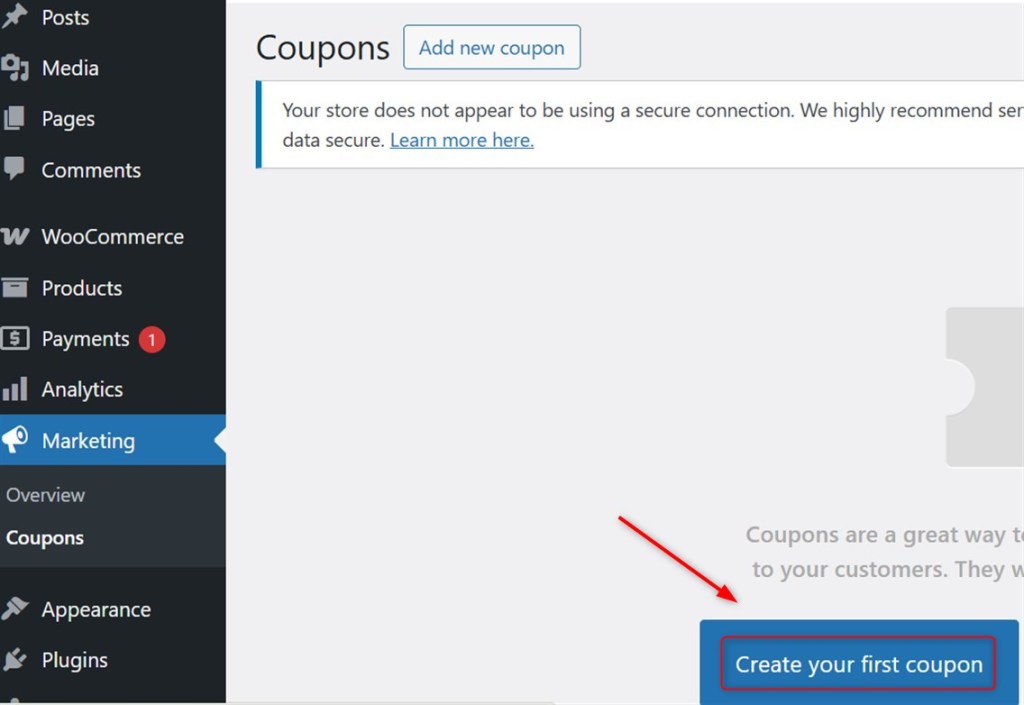
First, you need to go to WooCommerce in the sidebar of your WordPress dashboard. Categorized in the list, you will see Coupons:

In the Coupons tab, you can generate a new coupon by selecting “Add New.” Alternatively, if it’s your very first coupon, you can click the “Create your first coupon” button:
Note: You can explore our guide on “How to Duplicate a Page in WordPress.”
Begin with filling in the Coupon code and Description fields. The coupon code is what your customers will enter during checkout to apply the discount. You can enter whatever you would like there. However, in most cases, it is customary to use code that hints at what value the discount gives or what event it is associated with:
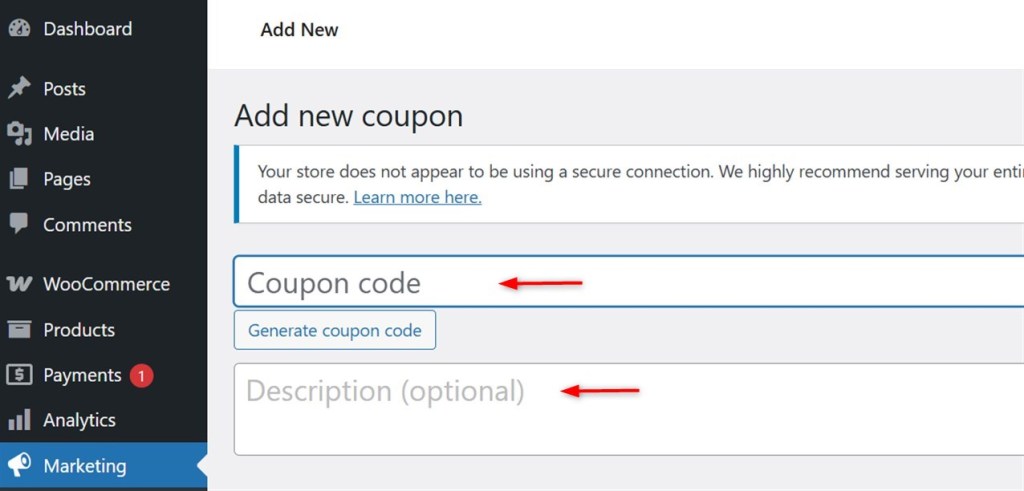
Remember that description is not displayed to customers, only to you. Thus, there are no privacy concerns if you place information about the coupon here that will help you remember important conditions.
Now, fill in the General data for your coupon. This data sets some of the most basic conditions for your discount, like the amount, the way it shall be used, and the expiration date.
The most basic discount type defines whether the coupon activates for all merchant items in the Customized Woocommerce Shopping Cart or vouchers for one item only. It also specifies whether the discount given is a fixed sum for the payment or a certain percentage of the total sum calculated for the cart:
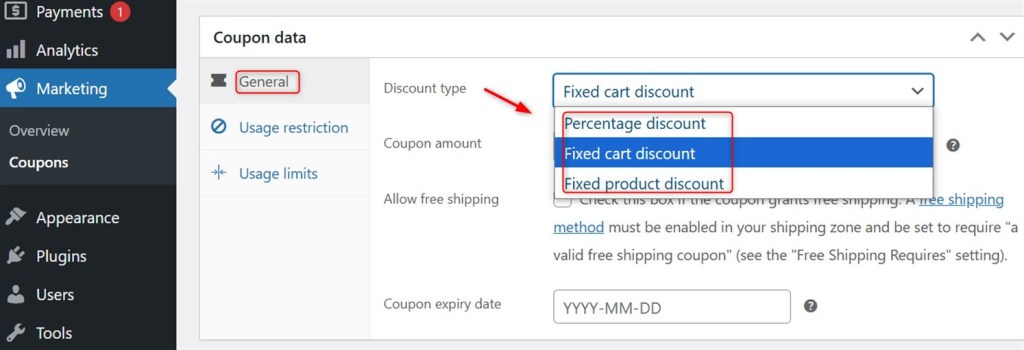
For instance, we choose the Percentage discount that calculates the discount amounts per item, like a coupon of 20 where $20 is deducted from one item. Alternatively, a percentage discount of 20 would apply a reduction of 20% to the total cart amount:
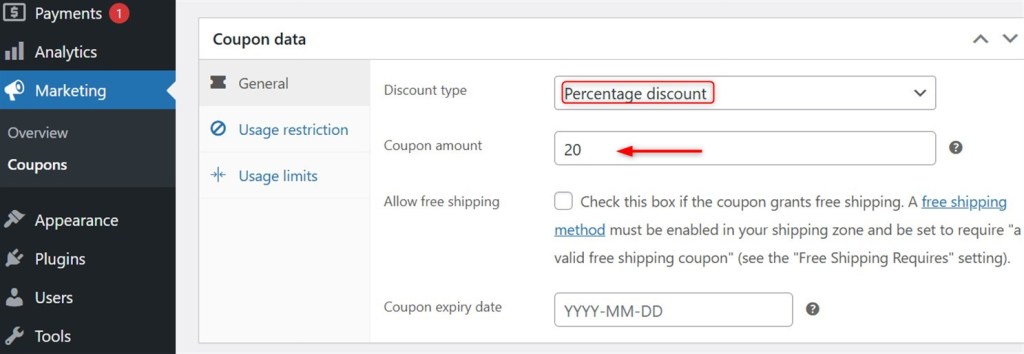
You may also choose if you wish to offer customers free shipping for this discount and here you can set an expiration date for your coupon too.
Important: If you want to create a website or need more guidance about hiring, navigate our interesting guide, “Hire a WordPress Specialist”
Step 2: Setting Usage Restrictions of Coupons
Now, we need to set usage limitations with these discount parameters. The following fields define the minimum and maximum subtotal that customers will need to save the coupon. These conditions determine who will add this discount to their cart:
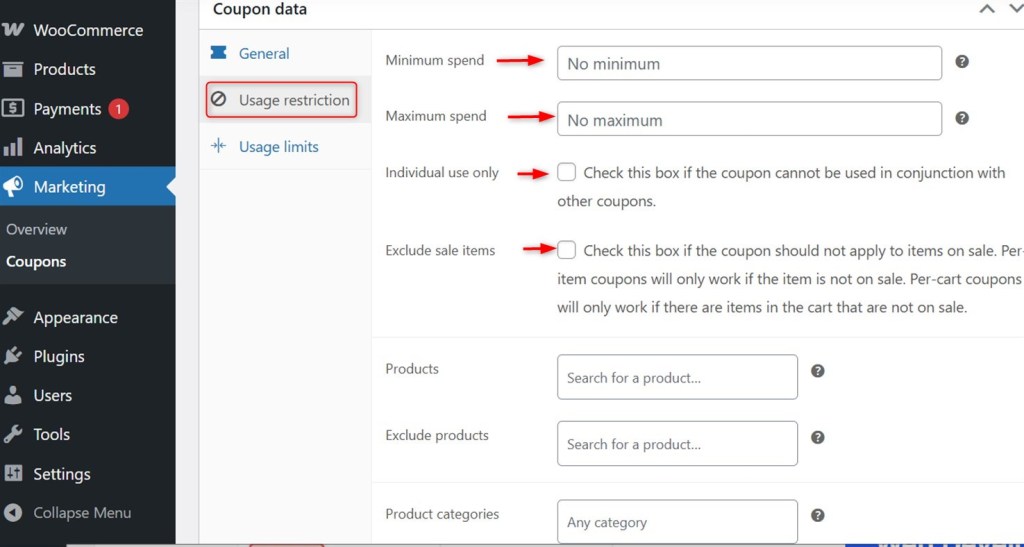
Fulfilling the fields of these parameters will apply the discount. So, if certain conditions need to be met in order to enable these conditions, those can be applied too with these sets.
Finally, if you wish, you can append a specific list of users that will have access to this discount. Replace the last email field with those whose access you wish to allow.
Step 3: Customizing the Usage Limits of Coupons
The limits on using your coupon decide on how often the discount is used and who uses it. Each restriction defines how many times all customers will use a single coupon. This area is useful for coupons for a specific number of customers, such as the first one hundred customers who subscribe to your email listing:
Also, you may limit the number of items that a customer applies this coupon to and the number of times a customer can use this coupon. All of these restrictions are extremely critical because, in most cases, customers should not be entitled to endless discounts.
Note: To explore more about WordPress, visit out article on “WordPress vs Webflow: Which is Best?”
Step 4: Marketing the Coupon
At this point, the coupon is ready but you still need to inform the customers of the discount available. Customers can always be reached through social media and email. Research also claims that sending these discounts to customers who have unused their carts can entice them back.
It gives you more chances of making a sale. Without this discount, you would not have been able to make it. You do have to ensure that the customers you’re targeting are those who already socially follow you or have subscribed to your newsletters.
You might also want to think about influencers. These are individuals of considerable social media fame who advertise products to their followers. With the help of influencers, you may be able to reach potential customers who otherwise wouldn’t learn about your brand.
No matter what strategy you choose for advertising your discounts, remember to highlight expiration dates and limits, as they are equally as important. Framing promotions in this manner creates urgency around your coupons, meaning people will act quicker to reserve the discounts before they run out.
That is all from the interesting guide.
Conclusion
To add a new coupon on WordPress products, first set your coupon’s usage restrictions. After that, define your coupon’s usage limits. Finally, promote the coupon to draw in customers. It improves the brand or business visibility among customers and attacts the customers to boost your WordPress product or service.
Frequently Asked Questions
Q 1: How do I Add a Coupon Code to WooCommerce WordPress?
It's easy to add a coupon code in WooCommerce. Go to your WordPress dashboard, then to WooCommerce > Marketing > Coupons > Add Coupon to Coupon. Once you're there, enter the coupon code, coupon type, discount type, and restrictions. Finally, hit the Publish.
Q 2: Are Coupon Codes for WordPress Genuine?
Yes, coupon codes are genuine from the customer side. It is an effective way to increase the sales of the business. Using coupon codes, businessman gives specific discounts on their product or services.
Q 3: How do I Add a WordPress Coupon Code Plugin?
Various WordPress Plugins exist that facilitate adding coupon features to WordPress sites that do not use WooCommerce Development. You may try Coupon Creator, Discount Codes, or Easy Coupon Builder. These plugins enable you to create and display coupon codes on your website.
Q 4: How do I Add Event Tickets to WordPress?
If you are using WooCommerce, ticketing can easily be done through plugins like Eventin. This plugin Integrates well with WooCommerce, allowing for the smooth management of ticket, registration, and access control sales. To know more, you can visit our WordPress API Integrations service.
Q 5: How to Add a Coupon Button to Your WordPress Site?
To add any coupon, go to WooCommerce >Marketing >Coupons. This is the page from where you can also add new coupons, edit old coupons, set expiry deadlines for those coupons, and see how many times those coupons were used. You can also look at and filter specific coupons with the other functions in the friendly interface.
Q 6: How to Enable Coupons in WooCommerce?
By default, coupons are enabled in WooCommerce and do not need manual activation. If, however, you have turned them off, go to WooCommerce > Settings > General section. Finally, check the box “enable coupon codes”. This will enable coupons across your WooCommerce Store.

Get a Quote
Start Your Affordable Development & Maintenance Plan Today
Get expert development, maintenance, and peace of mind — all at affordable rates. Start your support plan today!
Book a Call


